
3.7 KiB
AirScout Integration
🇬🇧 You are reading the English version | 🇩🇪 Deutsche Version
AirScout (by DL2ALF) is a program for detecting aircraft for aircraft scatter operation. KST4Contest is tightly integrated with AirScout and shows reflectable aircraft directly in the user list.
Aircraft Scatter enables very long-distance communication on VHF and higher – even for stations with low altitude above sea level or unfavourable topographic conditions.
Downloading AirScout
Download AirScout from:
Aircraft Data Feeds (ADSB)
Public aircraft data feeds on the internet are often unreliable and limited in use. A recommended alternative is the dedicated ADSB feed service provided by OV3T (Thomas):
An account is required for this service. Please consider donating to Thomas – the server costs are not free!
Setting Up AirScout
Step 1: Configure the ADSB Feed in AirScout
- Start AirScout.
- Enter your OV3T feed account details (username, password, URL) in the AirScout settings.

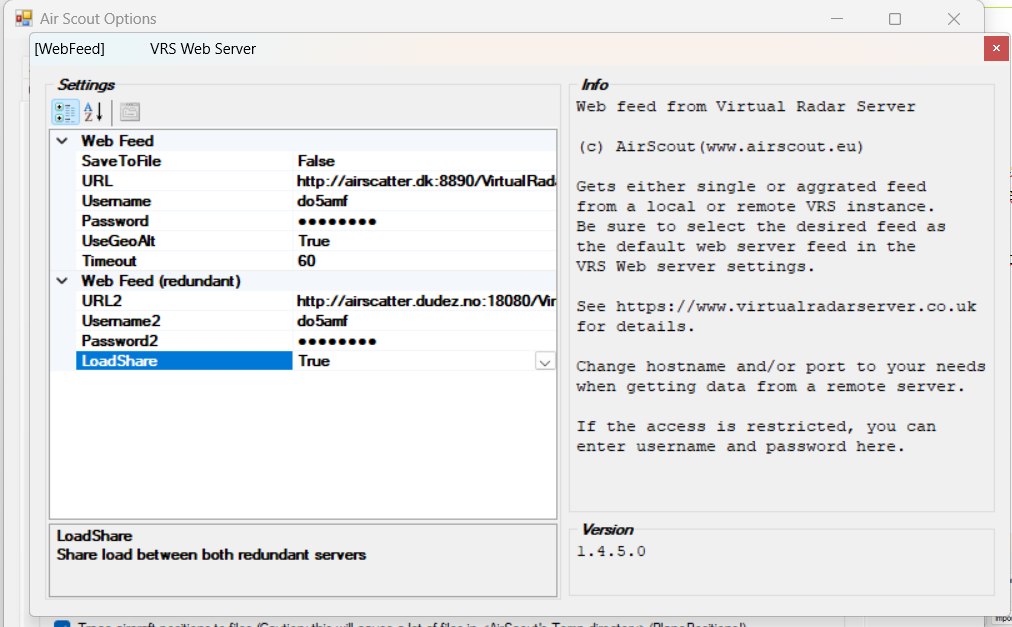
- Test the connection.


Step 2: Enable UDP Communication for KST4Contest
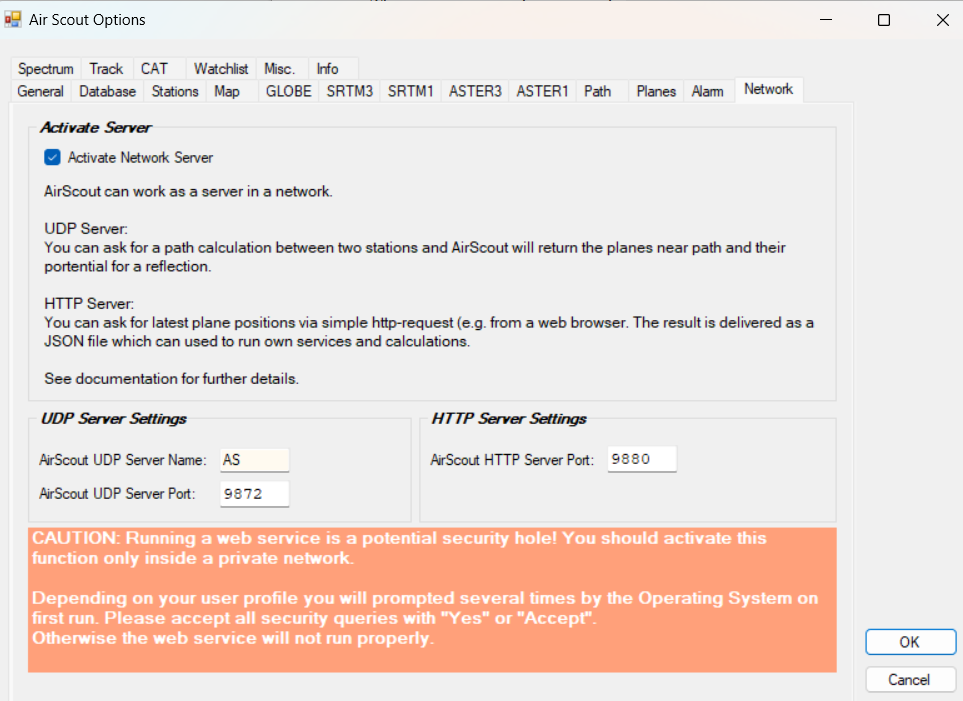
In AirScout, enable the UDP interface:
- Activate the corresponding checkbox in the AirScout settings (only one checkbox needed).
- Do not change the default ports unless there is a specific reason.
Step 3: KST4Contest Settings
In KST4Contest Preferences → AirScout Settings:
- Enable AirScout communication
- Leave IP and port at their default values (unless changed)

Communication Between KST4Contest and AirScout (from v1.263)
Improvement in v1.263: KST4Contest now only sends stations to AirScout whose QRB (distance) is less than the configured maximum QRB. The query interval has been extended from 12 seconds to 60 seconds.
Benefits:
- Significantly less computation load for AirScout
- Significantly less message traffic
- The tracking issue with the "Show Path in AirScout" button is greatly improved
- Less overall CPU usage
Additionally: The name of the KST4Contest client and AirScout server was previously hardcoded (KST and AS). From v1.263, the names configured in the Preferences are used.
Multiple KST4Contest Instances and AirScout
Note
: If multiple KST4Contest instances are running simultaneously and AirScout communication is enabled on both, AirScout will respond to both instances.
This is not a problem if:
- Both instances use the same locator, or
- Both instances have different login callsigns.
Otherwise, it may result in incorrect AP data.
AP Column in the User List
After setup, an AP column appears in the user list showing up to two reflectable aircraft per station.
Example display:
| Station | AP Info |
|---|---|
| DF9QX | 2 Planes: 0 min / 0 min, 100% each |
| F5DYD | 2 Planes: 14 min / 31 min, 50% each |
AP information is also available in the private messages window.
The percentage indicates the reflection potential (aircraft size, altitude, distance).
AP Variables in Messages
Aircraft data can be inserted directly into messages:
FIRSTAP→ e.g.a very big AP in 1 minSECONDAP→ e.g.Next big AP in 9 min
Details: Macros and Variables
"Show Path in AirScout" Button
In the user list there is a button with an arrow showing the direction (QTF) to the selected station. Clicking it maximises AirScout and shows the path with reflectable aircraft to the selected contact.